Explore and manage correlation
Correlation helps Attack Surface Management (Surface Command) present a clear, accurate view of your attack surface. Data about the same asset often exists across many IT and security tools, each describing that asset slightly differently. Correlation brings those records together so you can understand what you actually have, where it is exposed, and how risk accumulates across sources.
What is correlation?
Attack Surface Management (Surface Command) uses connectors to integrate with cloud platforms, endpoint tools, vulnerability scanners, change management databases (CMDBs), identity providers, and other systems. Each integration produces source records, which are individual representations of assets as they exist in that specific tool.
Correlation is the process of determining which source records describe the same real-world entity and grouping them into a single correlated asset. For example, a single Windows server might appear as:
- An EC2 instance in AWS
- An endpoint in an Endpoint Detection and Response (EDR) tool
- A device in a vulnerability scanner
- A configuration item in a CMDB
Without correlation, these would appear as separate assets.
Correlation is for assets, not properties
Correlation operates on the entities themselves (for example, assets, identities, and network services). Property values are used as inputs to determine whether records should be grouped together.
How correlation works
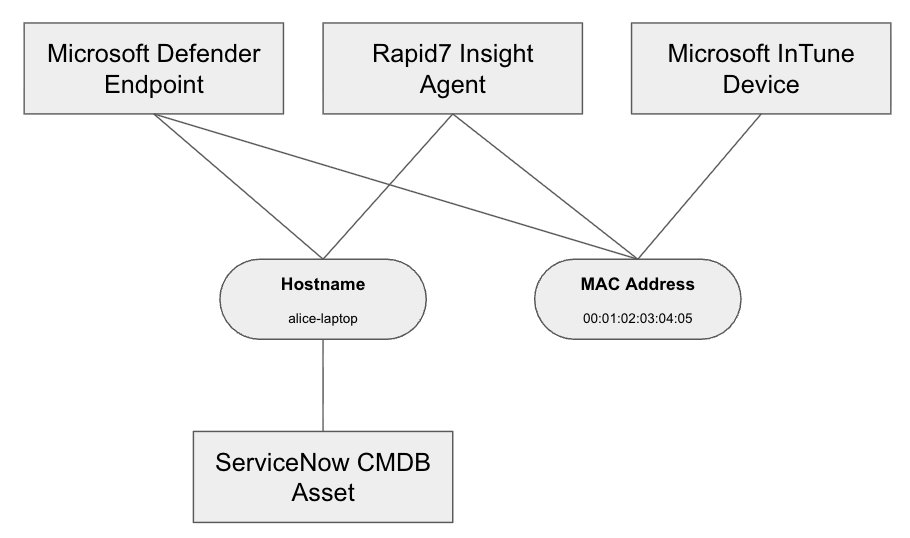
Each connector extracts correlation keys from its source records. Correlation keys are defined in the connector logic. Different data sources may emit different sets of keys.
Correlation keys are values that can uniquely or semi-uniquely identify an asset, such as:
- Hostnames (qualified or unqualified)
- MAC addresses
- Device serial numbers
- Cloud resource IDs
- Directory object identifiers
If two or more source records share at least one matching correlation key, Attack Surface Management (Surface Command) concludes they describe the same asset and correlates them.
Why correlation matters
Accurate correlation directly affects how you understand and manage risk:
- Asset counts: Over-correlation can collapse many assets into one, while under-correlation can inflate asset counts.
- Risk aggregation: Findings, vulnerabilities, and exposures are aggregated at the asset level. Incorrect correlation skews risk prioritization.
- Coverage analysis: Correlation shows which tools see which assets, helping identify gaps in visibility.
- Operational clarity: A unified asset view reduces manual reconciliation across tools.
For example, a single over-correlated asset with hundreds of source records may indicate a systemic issue such as reused hostnames, shared MAC addresses, or noisy network discovery data.
Common correlation issues
The built-in correlation algorithm in Attack Surface Management (Surface Command) is effective, but no automated system is perfect and may require tuning. The two most common issues are:
Over-correlation
Over-correlation occurs when too many source records are grouped together, effectively merging multiple real assets into one.
Common causes include:
- Generic hostnames (for example, vendor defaults like
iphone) - Reused identifiers on short-lived or ephemeral assets (VDI sessions, cloud instances)
- Shared hardware identifiers, such as MAC addresses from docking stations
- Network discovery tools that return low-fidelity or ambiguous data
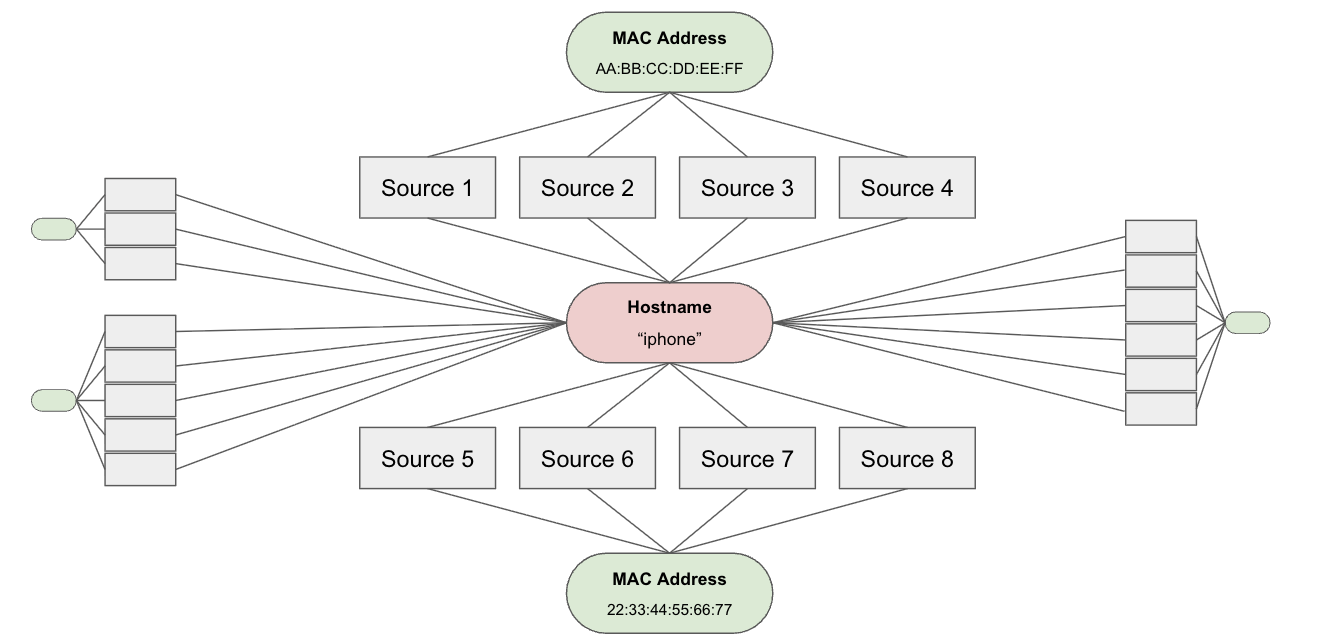
Another kind of common over-correlation is correlation cascade. For example:
- Source A matches Source B on one key
- Source B matches Source C on a different key
- As a result, Source A, B, and C are all correlated together
Correlation cascade isn't always negative
Cascades are sometimes desirable because different tools may expose different identifiers for the same asset. In other cases, cascades can create incorrect groupings that require tuning.
Under-correlation
Under-correlation occurs when source records that should describe the same asset are not grouped together. This results in a single real asset appearing as multiple assets in Attack Surface Management (Surface Command).
Under-correlation often indicates missing or inconsistent correlation keys across sources or data quality issues in one or more tools.
Correlation tuning
Correlation tuning allows you to influence how correlation keys are used when grouping source records. Tuning is typically used to correct over-correlation or under-correlation issues. Some best practices for working with correlation:
- Review highly correlated assets first as they often reveal systemic issues.
- Make incremental changes and reassess after each tuning update.
- Understand your data sources, especially CMDB and network discovery tools.
- Treat correlation tuning as an iterative process rather than a one-time fix.
- Revisit your correlation strategy each time you add a new connector.
Accurate correlation is essential for understanding your true attack surface. With Correlation Self-Service tuning, you gain more control and transparency into how assets are represented and how risk is calculated across your environment.
Attack Surface Management (Surface Command) supports tuning using rules. To create and manage correlation rules, you need to have the Administer permission level for Correlation Rules. Currently, you can only create exclude rules, which prevent specific values or patterns from being used as correlation keys. Tuning rules may be:
- Built-in rules, which are default rules provided by Rapid7
- Automatic rules, which are automatically created if a correlation key is shared by 50 or more source records
- User Defined rules, which are custom rules created to address organization-specific scenarios
Sometimes a built-in rule doesn’t fit your environment, and you need to change it. You can’t edit a built-in rule directly, but you can copy it and edit the copy.
As correlation rules change, affected source records are re-correlated. Depending on the rule type, this process may take several minutes or longer.
To view correlation rules:
- Go to Data Connectors > Attack Surface Management > Correlation Rules.
Add correlation rules
Rapid7 automatically correlates assets that have the same properties. If an asset is over-correlated, you can create an exclude rule to un-correlate the assets using a property. You can create correlation rules for internal and external assets from the respective attack surface pages in Attack Surface Management (Surface Command).
Proceed with caution
Tuning correlation may change how related assets are grouped. In some cases, it can split an asset into multiple separate assets. Changes may take time to process and can affect existing correlations, asset counts, and data accuracy.
To create a correlation exclude rule:
- Determine the type of asset you want to create a rule for:
- Internal assets: Go to Assets & Identities > Attack Surface Management > Assets or Identities.
- External assets: Go to Assets & Identities > Attack Surface Management, and select one of the External Attack Surface pages (Network Services, Certificates, Domains, IP Addresses).
- Click a row to open the properties panel.
- Expand the Correlation information drop-down.
- Expand a correlated property and click Exclude.
- Adjust the Value as needed:
- Leave the field empty to exclude all values.
- Use line breaks to separate multiple values.
- To exclude values for a specific connector type, select types from the drop-down.
- Leave the field empty to exclude all types.
- Adjust the Rule Name as needed.
- Optionally, update the description.
- Click Save Rule.
After you create the rule, it may take some time to process. Asset data updates after the next correlation cycle completes. While processing is in progress, a message appears in the Correlation Information section of the Asset Details panel.
Filter correlation rules
You can filter the Correlation Rules page using the Filter icon in any column header. Click Filter and adjust the operator to get started. After filtering the list, you can save the filter for later access. Anyone in Attack Surface Management (Surface Command) can access a saved filter.
To save a filter:
- Go to Data Connectors > Attack Surface Management > Correlation Rules
- Filter the page as needed.
- Click Save View.
- Enter a name for the view.
- Optionally, enter a description for the view.
- Click Save.
To access a saved filter:
- Go to Data Connectors > Attack Surface Management > Correlation Rules.
- Click Filter views (top-left corner).
- Select a filter. The filters with a lock icon denote a pre-made filter created by the Attack Surface Management (Surface Command) team.
To modify a saved filter:
- Go to Data Connectors > Attack Surface Management > Correlation Rules.
- Click Filter views (top-left corner).
- Select a filter.
- Remove, add, or modify filters as necessary.
- Save the filter:
- Click Save View to update the filter with the current configuration. This option is not available for pre-made filters.
- Click Save as… to save the current configuration as a new filter.
Copy a built-in correlation rule
You can copy a built-in correlation rule to use it as a starting point for a custom rule. Copying a rule lets you modify its values, name, and description without affecting the original.
To copy a built-in correlation rule:
- Go to Data Connectors > Attack Surface Management > Correlation Rules.
- Next to a rule, click Menu (…).
- Click Copy Rule.
- In the Copy Correlation Rule dialog, adjust the fields as needed:
- Value — Modify or add values, using line breaks to separate multiple entries. Leave the field empty to exclude all values.
- Exclude only for type (optional) — Select a connector type to limit the rule’s scope.
- Rule Name — Update the name to distinguish the copy from the original.
- Description (optional) — Add or update a description.
- To disable the original rule after saving the copy, select Disable source rule.
- Click Save Rule.
After you save the rule, it may take some time to process. Asset data updates after the next correlation cycle completes.
Disable a built-in correlation rule
You can disable a built-in correlation rule to stop it from affecting how assets are correlated, without permanently deleting it. Disabling a rule takes effect after the next correlation cycle.
To disable a built-in correlation rule:
- Go to Data Connectors > Attack Surface Management > Correlation Rules.
- Next to a rule, click Menu (…).
- Click Disable Rule.
- Review the confirmation message, then click Disable Rule.
After you disable the rule, the change takes effect after the next correlation cycle completes.
Edit or delete User-defined correlation rules
To edit a User-defined correlation rule:
- Go to Data Connectors > Attack Surface Management > Correlation Rules.
- Filter the page as needed.
- Next to a rule, click Menu (…).
- Click Edit Rule.
- Adjust the rule as needed.
- Click Update.
After you save the rule, its status changes to Processing. When processing completes, a notification appears. Refresh the page to see updated data.
To delete a User Defined correlation rule:
- Go to Data Connectors > Attack Surface Management > Correlation Rules.
- Filter the page as needed.
- Next to a rule, click Menu (…).
- Click Delete Rule.
- Click Delete.
After you delete the rule, its status changes to Deleting. When deleting completes, a notification appears. Refresh the page to see updated data.