Integrate a Zscaler Internet Access On-Premises Device
Configure a Zscaler Internet Access on-premises device. IOCs are pushed from Threat Intelligence to the device.
When IOCs are pushed to this device, only new IOCs that were discovered since the last push (the delta) are sent.
To receive IOCs, you use the Threat Intelligence Virtual Appliance web interface to integrate the device with Threat Intelligence, and then use Threat Intelligence to configure an IOC group whose IOCs will be pushed to the device. IOC groups for ZIA devices can consist of the following types of IOCs: domains, URLs, and IP addresses.
Before you begin, ensure:
- You have the credentials to access the Threat Intelligence Virtual Appliance web interface.
- You have the credentials to access the device management console.
- You have the Zscaler Internet Access API key (from the Zscaler Administration > API Key Management page).
Integrate a Zscaler Internet Access device
Use the Threat Intelligence Virtual Appliance to integrate the Zscaler Internet Access (ZIA) device with Threat Intelligence.
To integrate a ZIA device:
-
From an internet browser, navigate to https://<virtual appliance IP address>
-
Log in to the Threat Intelligence Virtual Appliance using the web access username and password.
-
From the Devices page, click Devices.
-
Click Add new device.
-
In the Devices screen, set up the new device:
- Type a user-defined, unique device name (for example, Zscaler_demo).
- Select the Zscaler Internet Access device type.
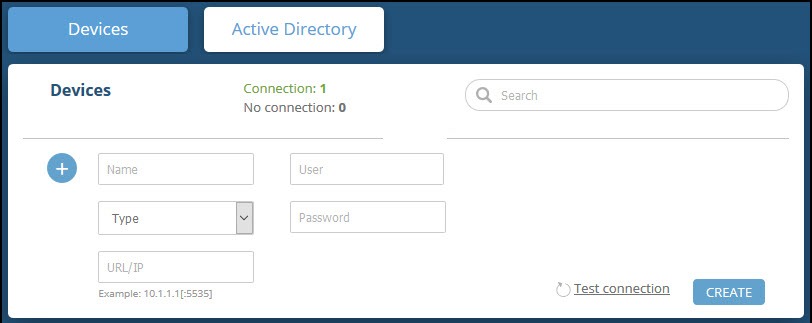
- Type values for User and Password.
These should be the same values used to access the ZIA web management console. 4. Paste the ZIA API key into the API Key field.
Ensure that what is pasted is only the key, not other copied data. 5. Type the URL or IP address of the ZIA machine:- URL/Domain: Type the domain with no additional fields (for example, admin.zscaler.net or https://admin.zscaler.net )
- IP address: Type the IP address with no additional fields (for example, 198.XX.XX.XXX or https:// XXXXX)
- (Optional) You can test the connection by clicking Test connection.
- Click Create.
- Review and approve the device license agreement.
-
Verify that the new device is displayed in the Threat Intelligence platform:
- From the Command Platform, go to Data Connectors > Threat Intelligence > Integrations. If this window is already open, refresh it by selecting Data Connectors > Threat Intelligence > Integrations from the menu. The new device is displayed in the On-Premises tab.
Configure an IOC group to push IOCs to the device
Once the Zscaler Internet Access (ZIA) device has been added and is synching with the Threat Intelligence Virtual Appliance, it is ready to receive IOCs that are pushed from Threat Intelligence. IOCs are pushed by creating an IOC group for this device in Threat Intelligence.
Creating IOC groups is described here .
IOC groups for ZIA devices can consist of the following types of IOCs: domains, URLs, and IP addresses.
Verify that IOCs are being pushed to the device
You can verify that IOCs are being pushed to the ZIA device.
To verify IOCs:
- From the Command Platform, go to Data Connectors > Threat Intelligence > Integrations.
- Select the device.
- On an IOC group of the device, click the Information icon. The IOCs in the group are displayed.
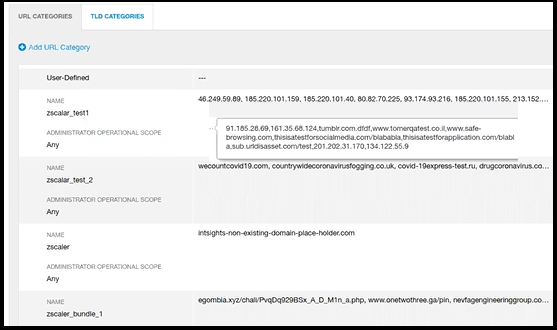
- In the ZIA management console, select Administration > URL Categories.
Rapid7 IOCs are displayed in the User-Defined section under the following name format:
<DeviceName_IOCGroupName> for example, zscaler_test1