CrowdStrike Falcon Insight Cloud Device
Configure a CrowdStrike Falcon Insight (CrowdStrike) cloud device to receive Indicators of Compromise (IOCs) from Threat Intelligence. When you add the device to Threat Intelligence, it will be configured to receive IOCs.
You can use this integration to create CrowdStrike detections. A CrowdStrike incident (suspected breach) can consist of either one high-severity detection or multiple medium and low-severity detections.
When IOCs are pushed to the device, all IOCs are pushed, every time.
IOCs are pushed, together with the following Threat Intelligence enrichment data:
- Source name (reported feed)
- First seen
- Last seen
- Severity
IOC groups for this device can consist of domains, IP addresses, and file hashes (MD5 or SHA256).
Prerequisites:
- You have the CrowdStrike API Client ID, Secret Key, and Base API URL. The API client must have read and write permissions (API scope) for IOCs and IOC Manager APIs.
Add a CrowdStrike cloud device to Threat Intelligence
You can add a CrowdStrike cloud device to Threat Intelligence.
To add a CrowdStrike device:
- From the Command Platform, go to Data Connectors > Threat Intelligence > Integrations.
- From the Integrations page, click the Cloud tab.
- Click Add new device.
- In the Add New Cloud Device dialog, type a user-defined name for the device.
The name can contain a maximum of 50 letters, spaces, numbers, and underscores. - For the Device type, select CrowdStrike.
The default device limit is displayed. - (Optional) You can change the IOCs limit.
- Type in the CrowdStrike Client ID, Secret Key, and Base API URL.
- (Optional) To create detections from Threat Intelligence IOCs, click Create detections from IOCs.
- It is recommended to click Test Credentials to ensure that the credentials are valid. If the credentials are not valid, a message is displayed.
- Click Add.
- To verify that the new device is displayed in Threat Intelligence, go to Data Connectors > Threat Intelligence > Integrations..
If this window is already open, refresh it by selecting go to Data Connectors > Threat Intelligence > Integrations. from the navigation panel.
The new device is added to the cloud integrations device list. Next to the device name, there is a red dot, indicating that communication has not yet been established. The dot will change to green when the device is synchronized. If the device cannot synchronize for more than 48 hours, an email warning is sent to the account administrator.
Uploading existing IOCs
If an IOC has previously been uploaded and is still present in the CrowdStrike database, it will not be uploaded again. We will automatically reattempt to upload the IOC in subsequent uploads.
Viewing IOCs via CrowdStrike
Due to a CrowdStrike limitation, IOCs that are pushed from Threat Intelligence are not visible in the CrowdStrike UI, rather only using the CrowdStrike API as custom queries. For a full description of the API, see the CrowdStrike “Custom IOCs” section.
Before you begin, ensure that you have the token that is required for API authentication.
Using API calls, you can get multiple IOCs or a single IOC. CrowdStrike limits the responses per call to 500 IOCs, which you can configure, as explained in the CrowdStrike API documentation.
Before every API call, you must pass the generated token using an authorization header, for example: Bearer <token>.
To get all IOCs:
- Issue this GET API call: https://api.crowdstrike.com/indicators/queries/iocs/v1 In this API request, you can change the number of IOCs presented.
To get a specific IOC:
- Issue this GET API call: https://api.crowdstrike.com/indicators/entities/iocs/v1?type=domain&value=example.com
You must specify the IOC type and value. In this example, we used:
- type = domain
- value = example.com
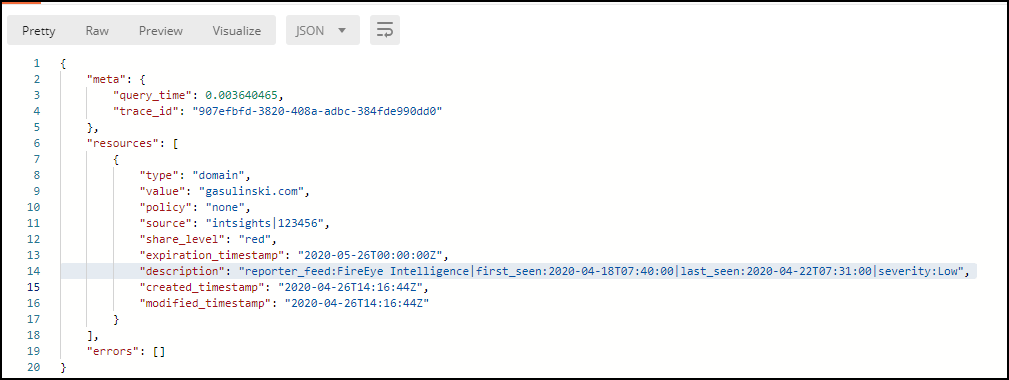
When requesting a specific IOC, the enrichment data is also presented. The following figure shows an IOC display: