McAfee ESM in the Cloud
Configure a McAfee ESM cloud device to pull IOCs from Threat Intelligence. You must first add the device to Threat Intelligence and then configure the device to pull IOCs from Threat Intelligence.
Add a McAfee ESM cloud device
Add a cloud device to Threat Intelligence.
Prerequisites
- You have the credentials to access the device.
To add a cloud device to Threat Intelligence:
- From the Command Platform main menu, navigate to Data Connectors > Threat Intelligence > Integrations.
- From the Integrations page, click the Cloud tab.
- Click Add new device.
- In the Add New Cloud Device dialog, type a user-defined name for the device. The name can contain a maximum of 50 letters, spaces, numbers, and underscores.
- Select the Device type.
The default device IOCs limit is displayed. - (Optional) You can change the IOCs limit.
- Click Add.
- To verify that the new device is added, refresh the Integrations page.
The new device is added to the cloud integrations device list. Next to the device name, there is a red dot, indicating that communication has not yet been established. The dot will change to green when the device is synchronized. If the device cannot synchronize for more than 48 hours, an email warning is sent to the account administrator.
Configure a McAfee ESM cloud to pull IOCs from Threat Intelligence
Integration with McAfee ESM includes two steps:
- Create a watchlist
- Create an alarm
Create a watchlist
- Log in to McAfee ESM Management console.
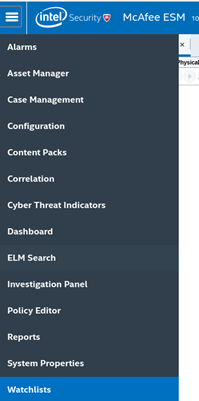
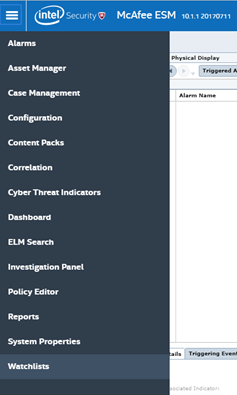
- Select Watchlists:
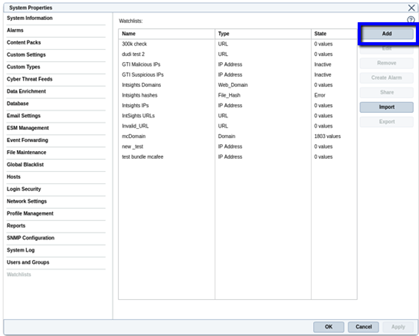
- Select a Watchlist and click Add:
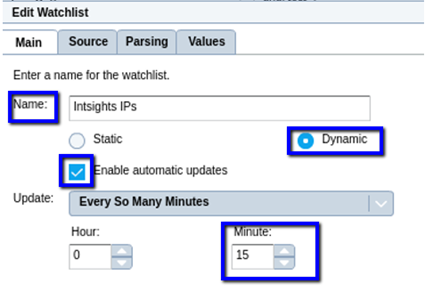
- Main tab - Add Watchlist details
- Name – custom name
- Set type to: Dynamic.
- Enable automatic updates.
- Set update interval to 15 minutes:
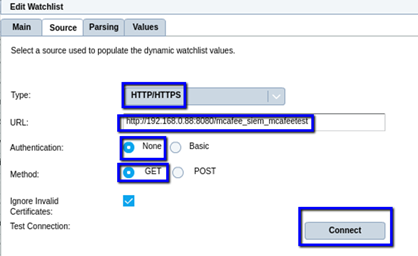
- Sources tab - Add Source details
- Set the HTTP/HTTPS source type.
- Add the URL taken from the device integration IOC list (ref page 14).
- Authentication: None
- Method: GET
- Test connection
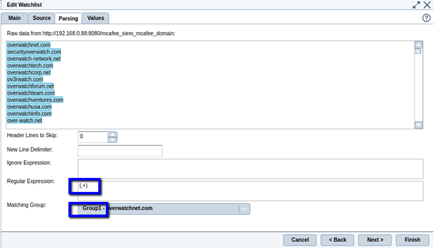
- Parsing tab - Set Parsing details
- Set the regular expression value to: +
- Set ‘Matching Group’ to: Group1
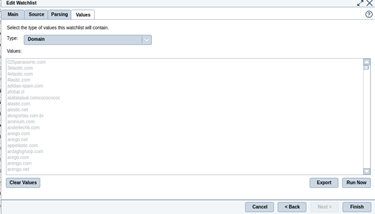
- Values tab - Set and test values
- Click run, you should see the IOC values.
- Finish
Create an alarm
- Select Watchlists
- On the Alarms tab, select an alarm and click Add.
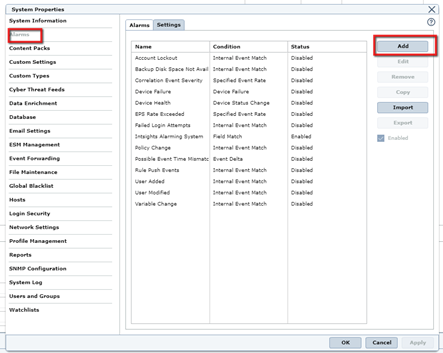
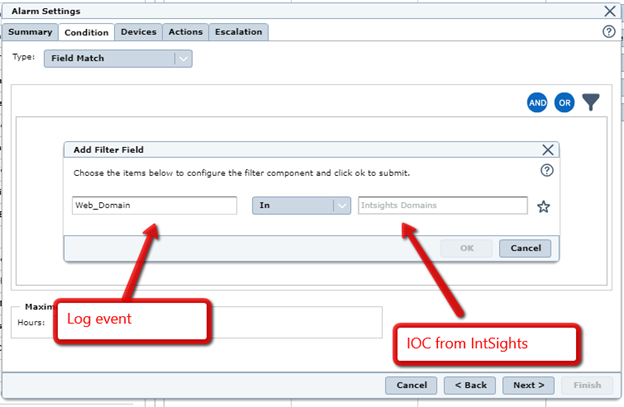
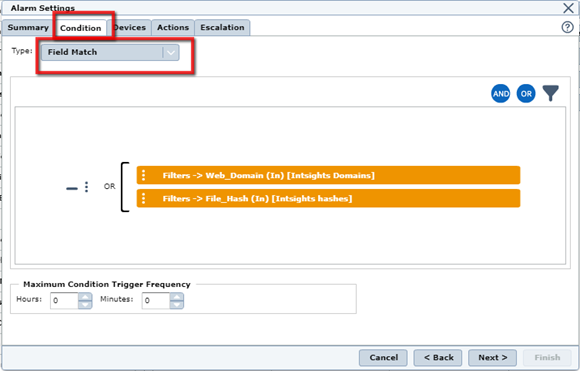
- Under Condition, add your Match condition. The example below uses ‘Field Match’ to match between Domains and File Hashes to IOCs from Rapid7.