Integrate a Fortinet FortiSIEM Cloud Device
Configure a Fortinet FortiSIEM cloud device to pull IOCs from Threat Intelligence. You must first add the device to Threat Intelligence and then configure the device itself to pull IOCs from Threat Intelligence.
Add a Fortinet FortiSIEM cloud device
Add a cloud device to Threat Intelligence.
Prerequisites
- You have the credentials to access the device.
To add a cloud device to Threat Intelligence:
- From the Command Platform main menu, navigate to Data Connectors > Threat Intelligence > Integrations.
- From the Integrations page, click the Cloud tab.
- Click Add new device.
- In the Add New Cloud Device dialog, type a user-defined name for the device. The name can contain a maximum of 50 letters, spaces, numbers, and underscores.
- Select the Device type.
The default device IOCs limit is displayed. - (Optional) You can change the IOCs limit.
- Click Add.
- To verify that the new device is added, refresh the Integrations page.
The new device is added to the cloud integrations device list. Next to the device name, there is a red dot, indicating that communication has not yet been established. The dot will change to green when the device is synchronized. If the device cannot synchronize for more than 48 hours, an email warning is sent to the account administrator.
Configure a Fortinet FortiSIEM device to pull IOCs
After a device has been added, you must enable it to pull IOCs from Threat Intelligence.
Before you begin, ensure:
- You have the device login credentials.
- The device has been added.
- An IOC group for this device exists in Threat Intelligence. Creating IOC groups is described in Create an IOC group.
Due to device limitations, IOC groups can consist of only one type of IOC. To support more than one type (domains, IP addresses, etc.), create multiple IOC groups.
To pull IOCs into FortiSIEM, you must set up a separate FortiSIEM resource group for each Threat Intelligence IOC group. The process of creating different forms of FortiSIEM groups is very similar and is described together. The small differences are noted in the description.
To configure a FortiSIEM device to pull IOCs:
- From Threat Intelligence, copy the IOC group URL:
- From the Command Platform main menu, select Data Connectors > Threat Intelligence > Integrations.
- From the On-Premises device list, select the FortiSIEM device.
- Click the link icon to the far right of an IOC group.
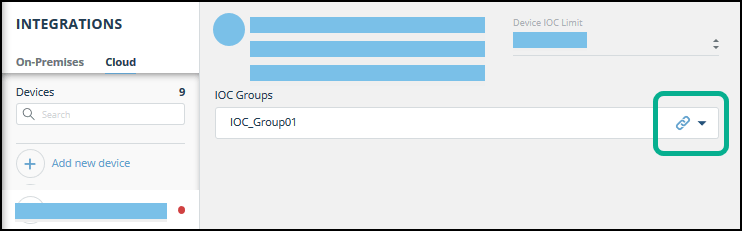
- From the IOC Group URL dialog box, copy the URL.
The URL is unique for each IOC group. - To ensure that the IOC group contains values, hover over the IOC group line, then click the information icon.
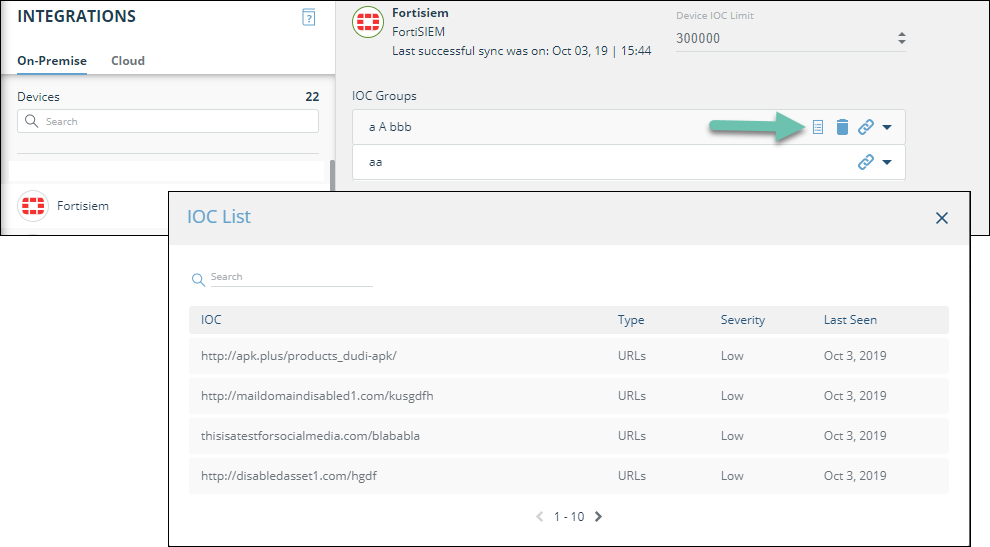
If the IOC list is not populated, stop, and then try again.
- Log in to the FortiSIEM management console.
- From the main menu, click Resource.

The task description will continue with the Malware Domains resource group, to match the Threat Intelligence domains IOC group. The same steps are used for the other resource groups.
- In the Resources menu, click Malware Domains (label 1).
The list of currently defined malware domains groups is displayed.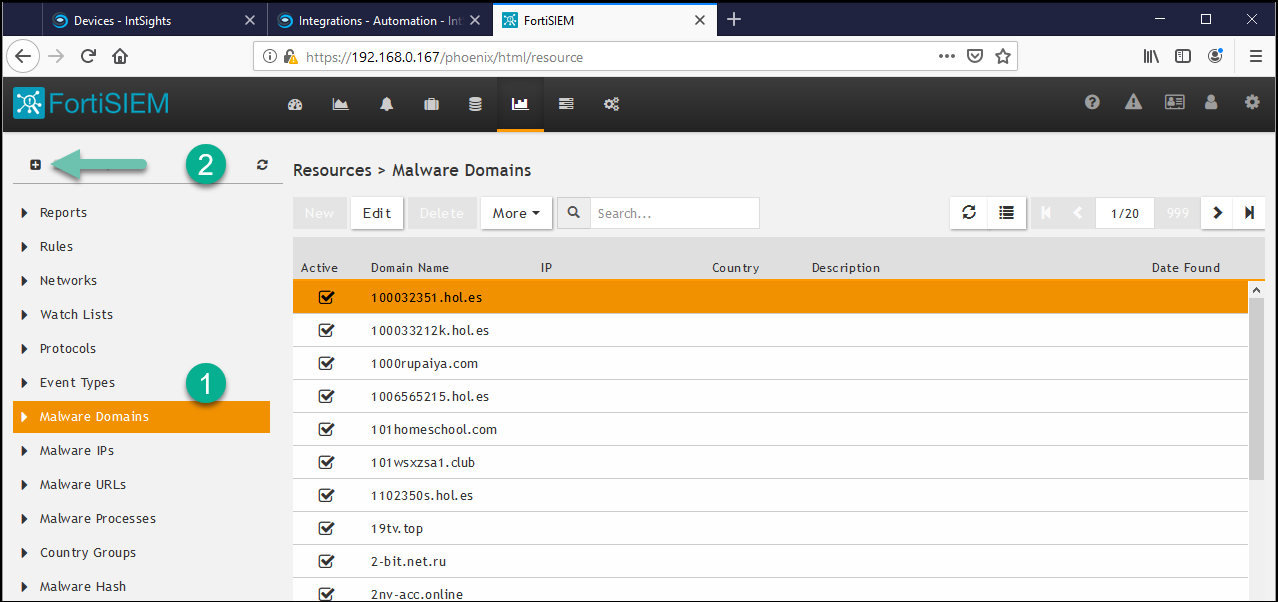
- Click + (label 2) to create a new group.
- In the Create New Malware Domain Group dialog, type a name and a description (optional), then click Save.
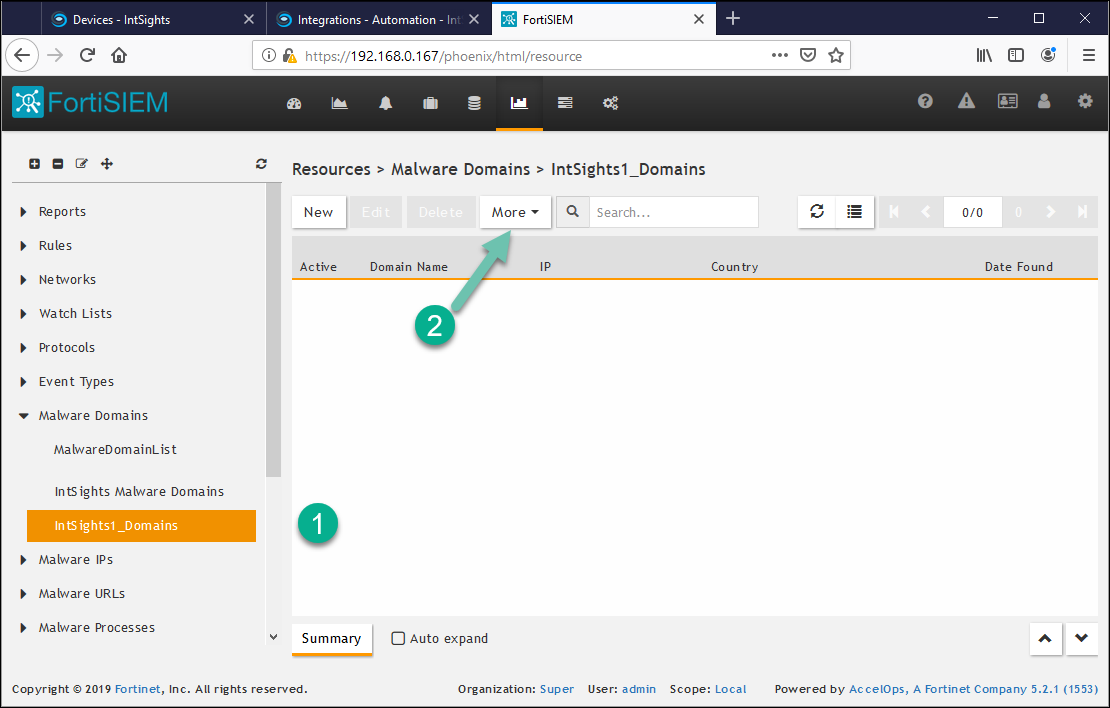
In our example, the resource was named IntSights1_Domains. - Expand the Manage Domains section and select the new resource (label 1 IntSights1_Domains), then click More > Update (label 2).
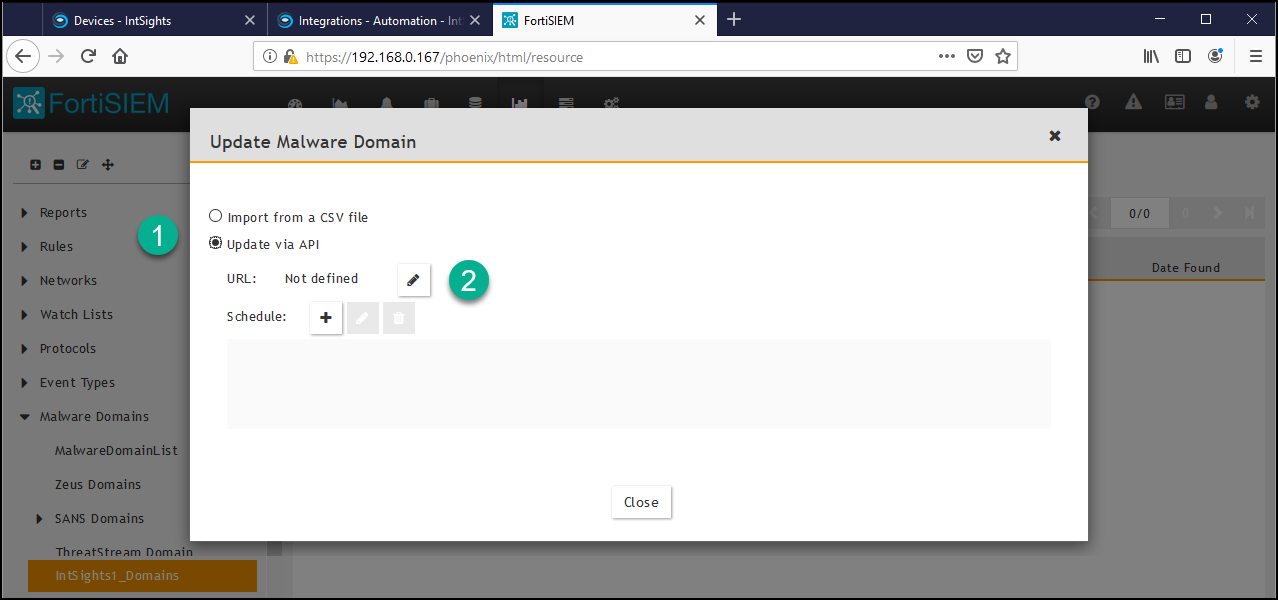
- In the Update Malware Domain dialog, select Update via API, then click the URL edit icon.
 The dialog box expands to display additional parameters.
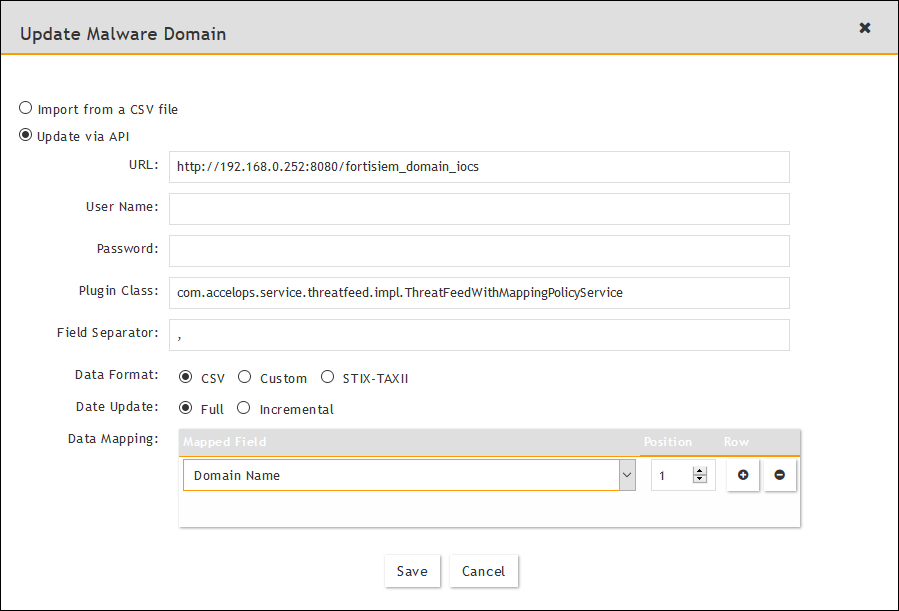
- Enter the details for the resource group, as described in the table for the specific resource group type. (This is the only step where creating resource groups differs.)
Update Malware Domain values
| Field in update dialog | Enter this |
|---|---|
| URL | Paste URL from the domains IOC group in the Threat Intelligence Integrations page. - Replace [APPLIANCE_IP] with the IP address of your Threat Intelligence Virtual Appliance. - Ensure that the port matches the port in use. |
| User Name | Leave blank |
| Password | Leave blank |
| Plug-in Class | Leave as-is |
| Field Separator | Type a comma (this is the default) |
| Data Format | CSV |
| Date Update | Select Full |
| Data Mapping | Select Domain Name and Position = 1 |
Update Malware IP values
| Field in update dialog | Enter this |
|---|---|
| URL | Paste URL from the IP address IOC group in the Threat Intelligence Integrations page. - Replace [APPLIANCE_IP] with the IP address of your Threat Intelligence Virtual Appliance. - Ensure that the port matches the port in use. |
| User Name | Leave blank |
| Password | Leave blank |
| Plug-in Class | Leave as-is |
| Field Separator | Type a dash (this is the default) |
| Data Format | CSV |
| Date Update | Select Full |
| Data Mapping | Select Low IP and Position = 1 |
Update Malware URL values
| Field in update dialog | Enter this |
|---|---|
| URL | Paste URL from the URLs IOC group in the Threat Intelligence Integrations page. Replace [APPLIANCE_IP] with the IP address of your Threat Intelligence Virtual Appliance. - Ensure that the port matches the port in use. |
| User Name | Leave blank |
| Password | Leave blank |
| Plug-in Class | Leave as-is |
| Field Separator | Type a comma (this is the default) |
| Data Format | CSV |
| Date Update | Select Full |
| Data Mapping | Select URL and Position = 1 |
Update Malware Hashes values
| Field in update dialog | Enter this |
|---|---|
| URL | Paste URL from the Hashes IOC group in the Threat Intelligence Integrations page. - Replace [APPLIANCE_IP] with the IP address of your Threat Intelligence Virtual Appliance. - Ensure that the port matches the port in use. |
| User Name | Leave blank |
| Password | Leave blank |
| Plug-in Class | Leave as-is |
| Field Separator | Type a comma (this is the default) |
| Data Format | CSV |
| Date Update | Select Full |
| Data Mapping | - Select Botnet Name and Position = 1 - Select Algorithm and Position = 2 - Select HashCode and Position = 3 |
- Click Save.
- In the Update Malware Domain dialog, click the Schedule + icon.
The dialog box expands to display additional parameters.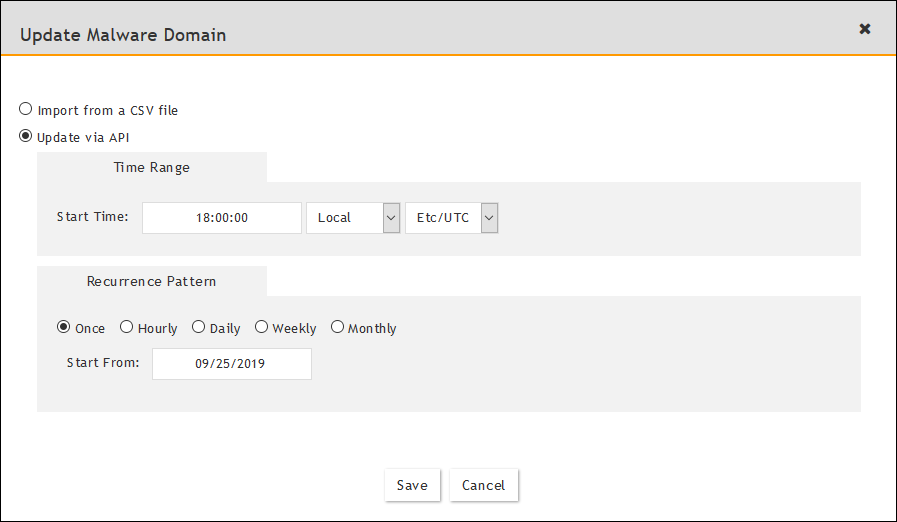
- Set a schedule and recurrence pattern for when FortiSIEM should pull the IOCs, then click Save.
- Click Close.
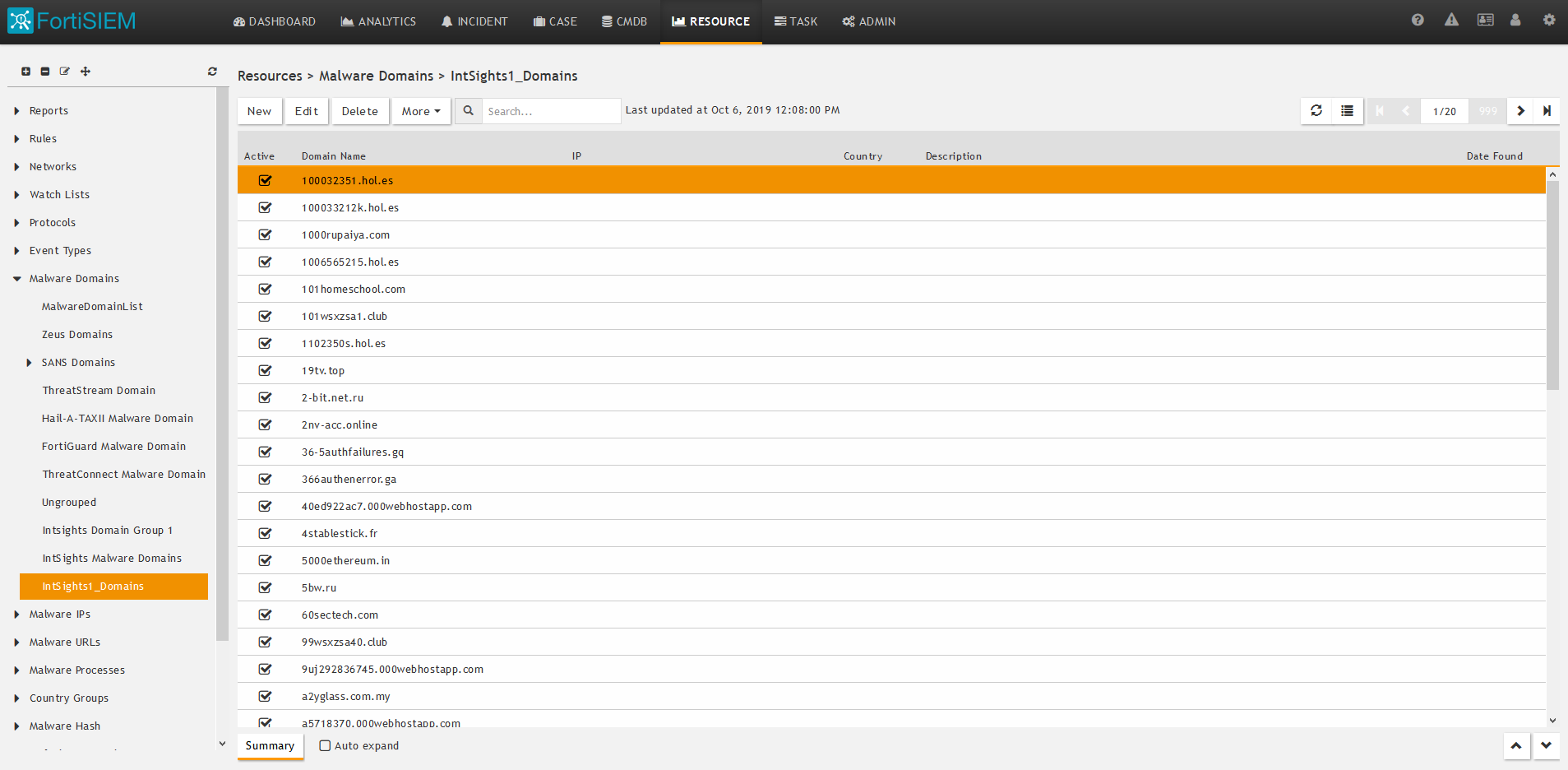
- To verify that IOCs are uploaded to FortiSIEM go to the resource you created and verify that IOCs are populated in the table.
For example: