Integrate a Carbon Black Response On-Premises Device
Configure a Carbon Black on-premises device to pull IOCs from Threat Intelligence.
The following table shows device-specific integration characteristics:
| Characteristic | Description |
|---|---|
| IOC types supported | Domains, MD5 file hashes, IP addresses, and URLs. |
| IOC group limitation | All IOC types can be pulled in the same group. |
| Device IOC limit | The device is limited to 50,000 IOCs. |
To integrate the device, perform these steps (described in the following sections):
- Add the device to the Threat Intelligence Virtual Appliance.
- Configure the device to pull IOCs from Threat Intelligence.
Add a Carbon Black on-premises device
The procedure to add the device to Threat Intelligence is different depending on the version of the Threat Intelligence Virtual Appliance in your environment. To determine which version is running, see Determine the Version of Virtual Appliance.
Add the on-premises device
Add the device in virtual appliance v3.9
Prerequisites:
- The Threat Intelligence Virtual Appliance web interface is configured and you can access it.
- You have the credentials to access the device.
To add the device to Threat Intelligence:
- From an internet browser, navigate to https://<virtual appliance IP address>
- Log in to the virtual appliance using the web access username and password.
- From the Devices page, click Devices (Pull).
- Click Add new device.
- In the Devices (Pull) screen, set up the new device:
- Type a user-defined, unique device name.
- Select the device type.
- Click Create.
- Verify that the new device was added:
- Log in to the Rapid7 Command Platform.
- From the main menu, select Data Connectors > Threat Intelligence > Integrations.
If this window is already open, refresh it by selecting Data Connectors > Threat Intelligence > Integrations from the menu.
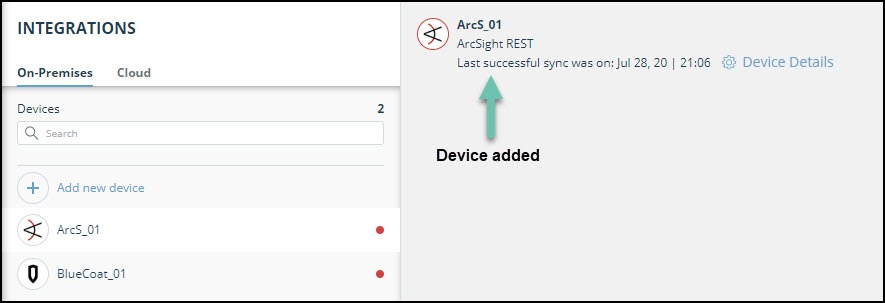
The new device is displayed in the On-Premises tab.
Add the device in virtual appliance v4.0
Prerequisites:
- You have the credentials to access the Threat Intelligence Virtual Appliance web interface.
- You have the credentials to access the device.
To add the device to Threat Intelligence:
- Log in to the Rapid7 Command Platform.
- From the main menu, select Data Connectors > Threat Intelligence > Integrations.
- From the Integrations page, click On-Premises.
- Click Add new device.
- In the Add New On-Premises Device dialog, type a user-defined name for the device.
The name can contain a maximum of 50 letters, spaces, numbers, and underscores. - Select the Device type.
The default device IOCs limit is displayed. - (Optional) You can change the IOCs limit.
- Click Add.
- To verify that the new device is added, refresh the Data Connectors > Threat Intelligence > Integrations page.
Next to the device name, there is a red dot, indicating that communication has not yet been established. The dot will change to green when the device is synchronized. If the device cannot synchronize for more than 48 hours, an email warning is sent to the account administrator.
Configure a Carbon Black Response device to pull IOCs
After a device has been added to the Threat Intelligence Virtual Appliance, you must enable the pulling of IOCs by the Carbon Black Response device from Threat Intelligence.
Configuration for on-premises devices
When configuring an on-premises device, it is important to know which version of the Threat Intelligence Virtual Appliance is running in your environment. This will affect which Rapid7 URL is displayed in the Device Details screen and also which URL to copy into the device management console.
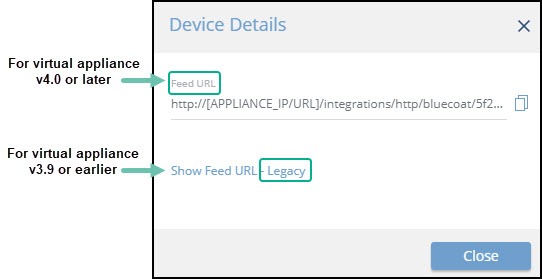
When running version 4.0 or later, the Legacy URL should be used only with Rapid7 support.
To determine which version of the virtual appliance is running, see Determine the version of virtual appliance.
Prerequisites
Before you begin, ensure:
- You have the device login credentials.
- The device has been added.
- An IOC group for this device exists in Threat Intelligence. Creating IOC groups is described in Create an IOC group.
To configure a Carbon Black Response on-premises device:
- Log in to the Carbon Black management console.
- Navigate toThreat Intelligence.
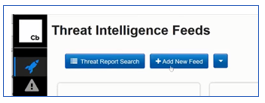
- Click Add New Feed.
- From Threat Intelligence, copy the Carbon Black Feed URLinto Carbon Black:
- From the Command Platform, go to Data Connectors > Threat Intelligence > Integrations.
- From the On-Premises device list, select the Carbon Black Response device.
- Click the Device Details link at the top of the screen:
The IOC Group URL dialog is displayed. - From the IOC Group URLdialog, copy the URL:
- For virtual appliance v4.0 or later: Use the Feed URL.
- For virtual appliance v3.9 or earlier: Use the Legacy URL.
- Paste the Carbon Black IOC group URL from Threat Intelligence into Carbon Black:
- In the Carbon Black Edit Alliance Feed dialog, paste the URL.
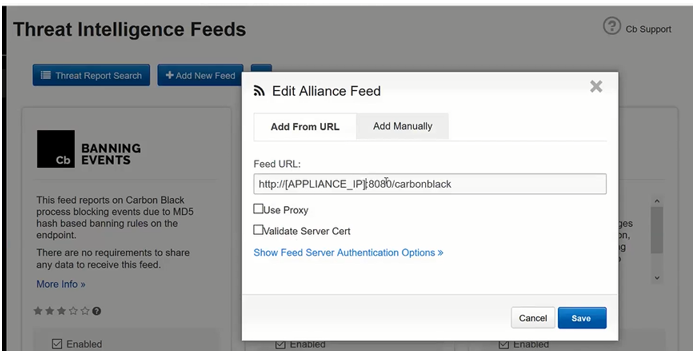
- Replace [APPLIANCE_IP] with the IP address of the appliance.
- Click Save.
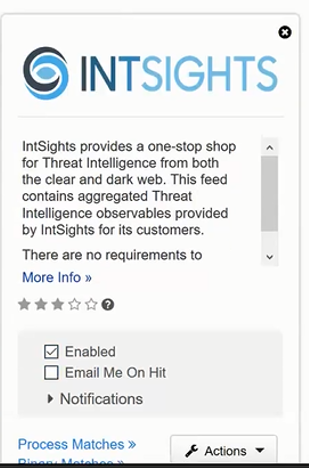
- In the feed, select Enabled.
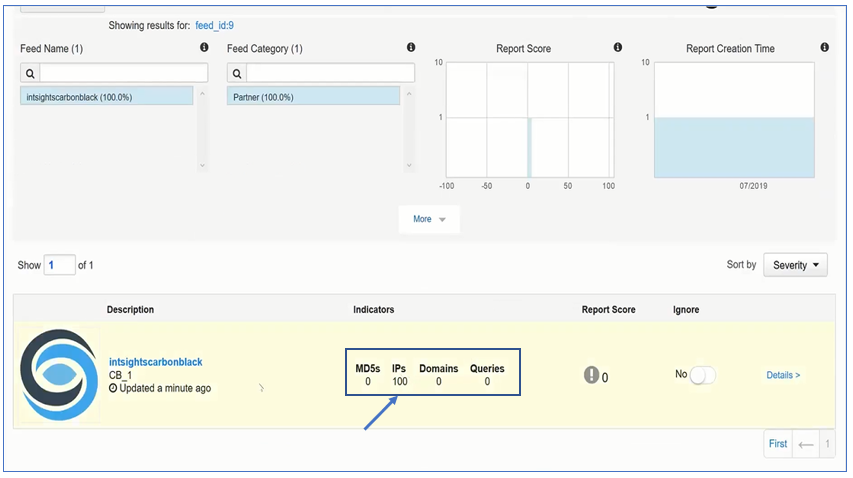
- In the Carbon Black management console, verify that IOCs are being received: