Integrate a Carbon Black Response Cloud Device
Configure a Carbon Black Response cloud device to receive IOCs from Threat Intelligence. When you add the device to Threat Intelligence, it will be configured to receive IOCs.
Add a Carbon Black Response cloud device to Threat Intelligence
Add a cloud device to Threat Intelligence.
Prerequisites
- You have the credentials to access the device.
To add a cloud device to Threat Intelligence:
- From the Command Platform main menu, navigate to Data Connectors > Threat Intelligence > Integrations.
- From the Integrations page, click the Cloud tab.
- Click Add new device.
- In the Add New Cloud Device dialog, type a user-defined name for the device. The name can contain a maximum of 50 letters, spaces, numbers, and underscores.
- Select the Device type.
The default device IOCs limit is displayed. - (Optional) You can change the IOCs limit.
- Click Add.
- To verify that the new device is added, refresh the Integrations page.
The new device is added to the cloud integrations device list. Next to the device name, there is a red dot, indicating that communication has not yet been established. The dot will change to green when the device is synchronized. If the device cannot synchronize for more than 48 hours, an email warning is sent to the account administrator.
Configure a Carbon Black Response cloud device to pull IOCs
After a device has been added, you must enable the pulling of IOCs by the Carbon Black Response device from Threat Intelligence.
Before you begin, ensure:
- You have the device login credentials.
- The device has been added.
- An IOC group for this device exists in Threat Intelligence. Creating IOC groups is described in Create an IOC group.
Threat Intelligence supports IOC groups of domains, IP addresses, and MD5 file hashes only.
To configure a Carbon Black Response cloud device:
- Log in to the Carbon Black management console.
- Navigate to Threat Intelligence.
- Click Add New Feed.
- From Threat Intelligence, copy the Carbon Black device URL and authentication details into Carbon Black:
- From the Command Platform, go to Data Connectors > Threat Intelligence > Integrations.
- From the Cloud device list, select the Carbon Black Response device.
- From the top of the page, click Device Details.
- Paste the full Feed URL from Digital Risk Protection into the Carbon Black Edit Alliance Feed dialog:
- From the Digital Risk Protection Settings > Subscription page, copy and paste these values:
- Copy the Digital Risk Protection Account ID to the Carbon Black Username.
- Copy the Digital Risk Protection API key to the Carbon Black Password.
For more information about generating, revoking, and displaying these credentials, see API key, account ID, and appliance key .
- Click Save.
- In the feed, select Enabled.
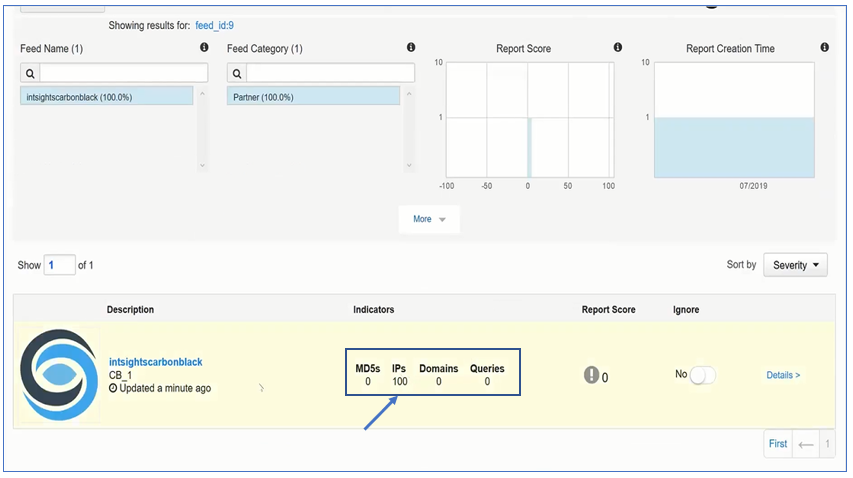
- In the Carbon Black management console, verify that IOCs are being received: