Configure a Network Sensor Host in Azure
The network sensor can be deployed on any virtual machine that meets the Network Sensor Host System Requirements.
Deploy the Network Sensor host in the same region as the virtual machines you plan to monitor. Ensure that an SSH port is opened to the virtual machine, as this will be needed to install and configure the Network Sensor.
Choose a Virtual Network
Before you deploy the host for the Network Sensor, pay attention to the location of the virtual network:
- If you deploy the host into the same virtual network as the traffic sources, no further steps are required.
- If you deploy the host into a separate virtual network, you must enable Virtual Network Peering. This allows the two virtual networks to communicate directly and securely, which is essential for the vTAP to send traffic to the Network Sensor.
Add the vTAP Destination Network Interface
After the host VM is deployed, add a second Network Interface to act as the vTAP destination.
To add a Network Interface:
- Stop the VM.
- Open the Network Settings menu of the VM host.
- Select Attach network interface.
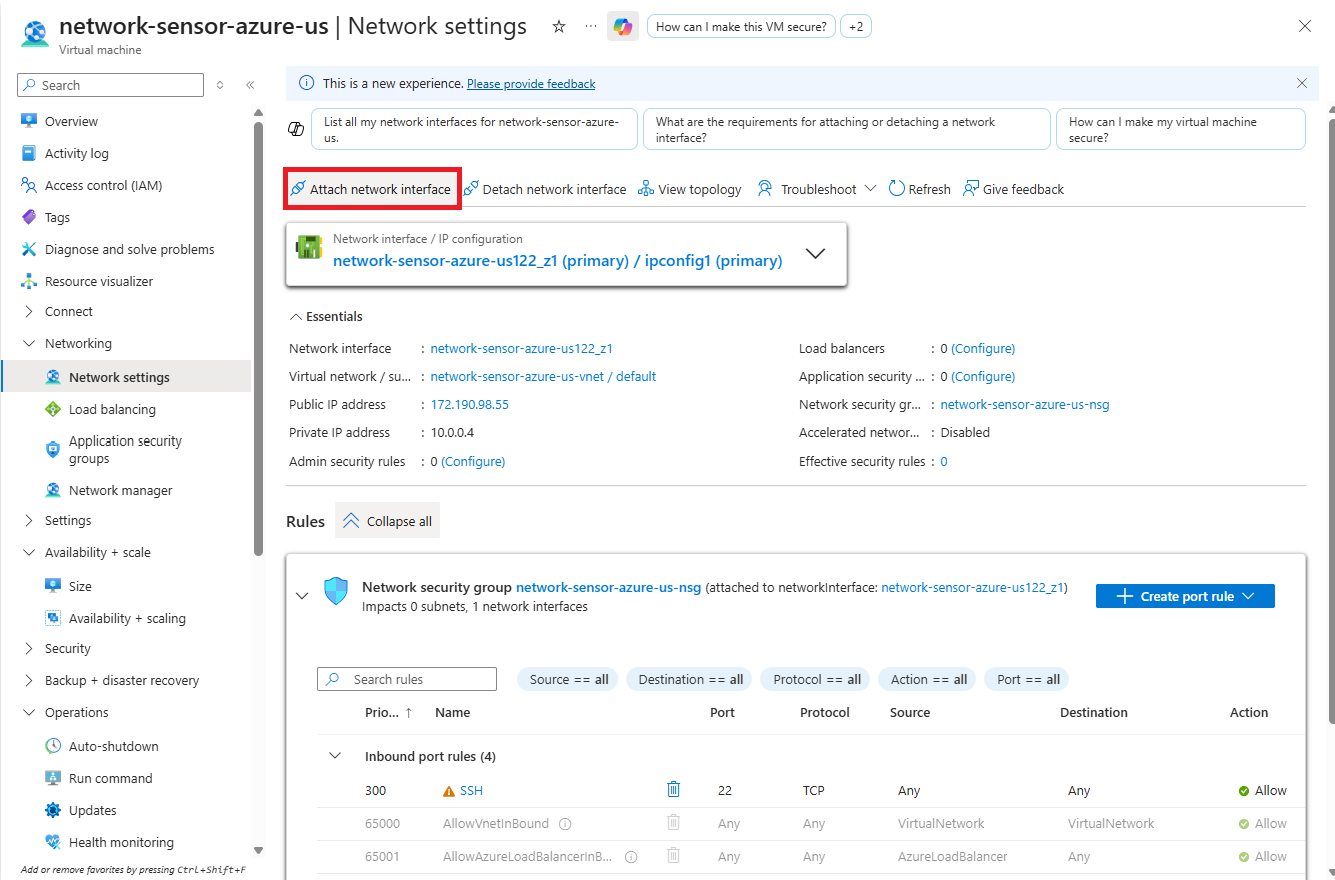
- Select Create and attach network interface.
- Configure the NIC with a descriptive name, such as
vTAP_destination. The other settings can be left as default.
Next steps
Now that you’ve provisioned the Network Sensor host, enable Virtual Network Peering if the host is in a different virtual network to your traffic sources. Otherwise, continue to Configure the Azure vTAP.