Configure the Network Sensor Virtual Machine in Hyper-V
Once you have configured your virtual switches, you can create the virtual machine that the Rapid7 Network Sensor (Insight Network Sensor) will run on.
Create the Virtual Machine
In Hyper-V Manager, select New > Virtual Machine and configure the following:
- Name - Give the virtual machine a name that makes the purpose of the host clear, such as
NetworkSensor. - Location - Configure the location where the virtual machine files will be stored. This is dependent on your setup.
- Generation - Either generation is suitable for this purpose.
- Assign Memory - Assign 16 GB, in line with the Network Sensor host system requirements. If host resources are limited and you expect low traffic volume, you can assign less.
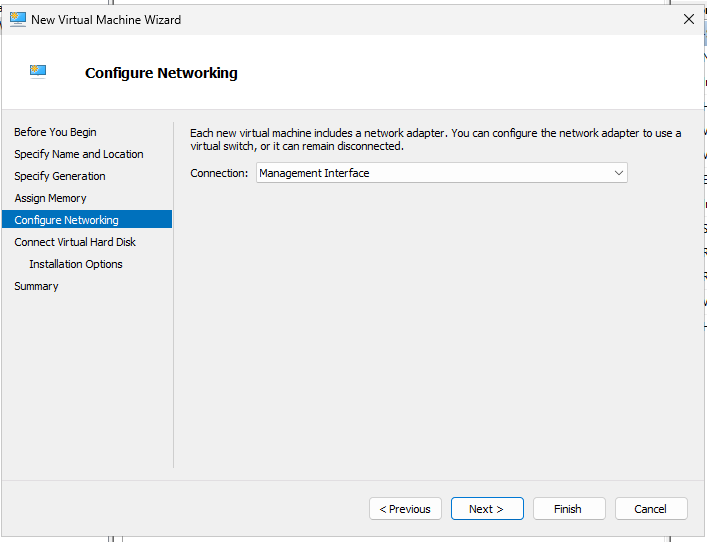
- Configure Networking - Select the management switch you configured from the dropdown.
- Connect Virtual Hard Disk - Set the virtual hard disk size in accordance with the Network Sensor host system requirements.
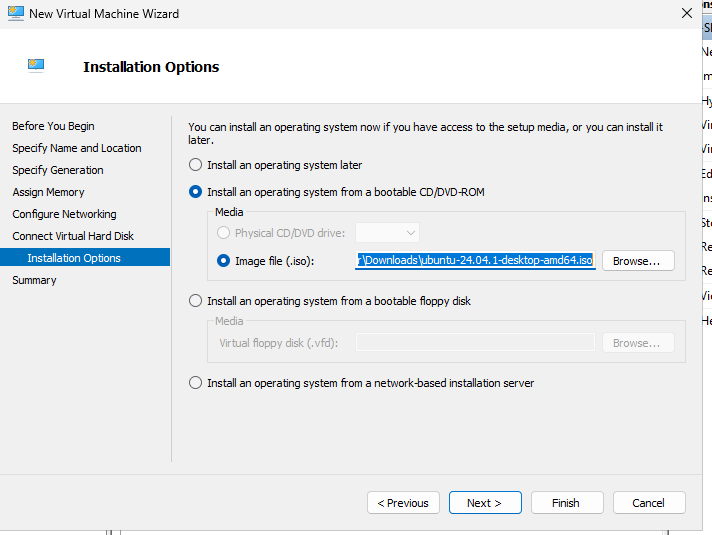
- Installation Options - Select Install an operating system from a bootable CD/DVD-ROM, select Image file (.iso), and browse to the location of the ISO for the host operating system you want to install the network sensor on.
Complete the setup as instructed.
Add the Monitoring Network Adapter
The management switch is configured as part of the virtual machine setup, so the monitoring switch must be added to the virtual machine separately.
- Once the VM has been created, right-click the VM in Hyper-V Manager and click Settings.
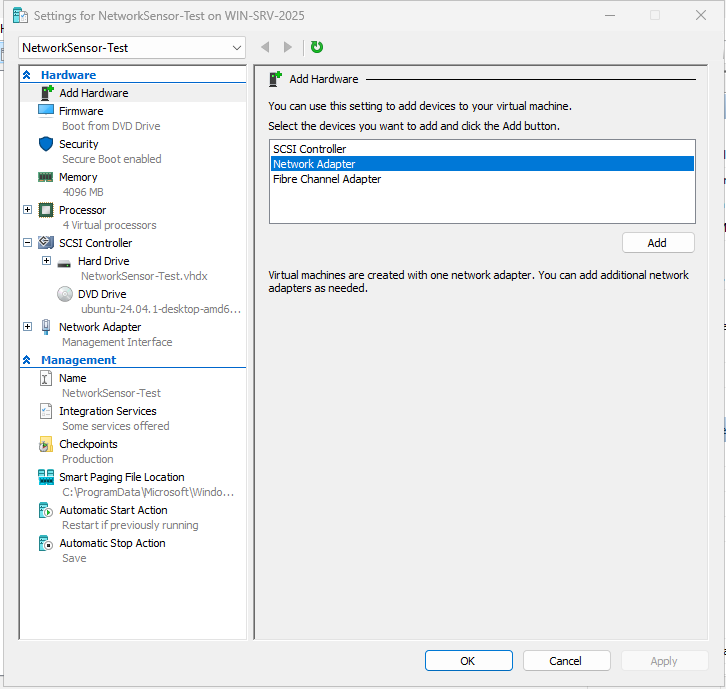
- Click Add Hardware and select Network Adapter.
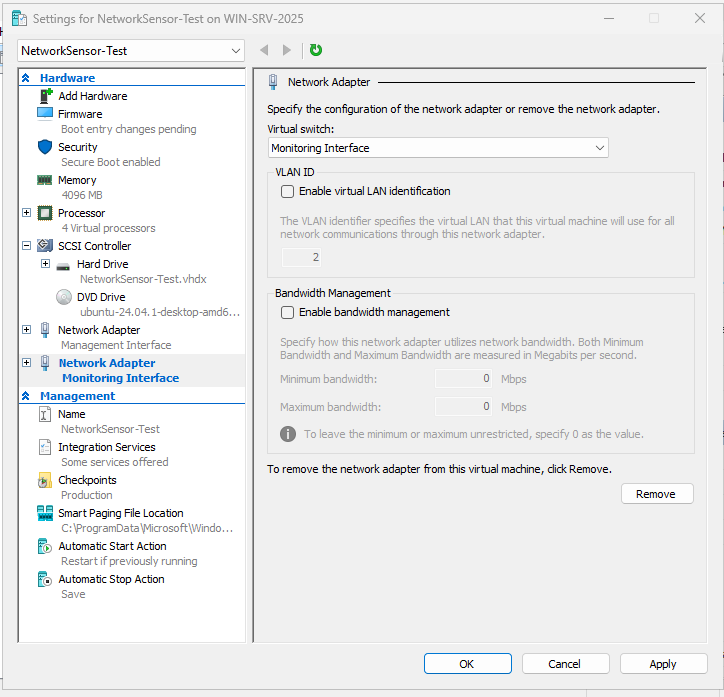
- Click the newly created Network Adapter in the hardware list, and select the monitoring switch from the Virtual switch dropdown menu.
Set the Mirroring Mode
- Expand the Network Adapter option for the monitoring interface using the + icon to the left of it.
- Select Advanced Features.
- Scroll down to the Port mirroring section and select Destination in the Mirroring mode dropdown menu.
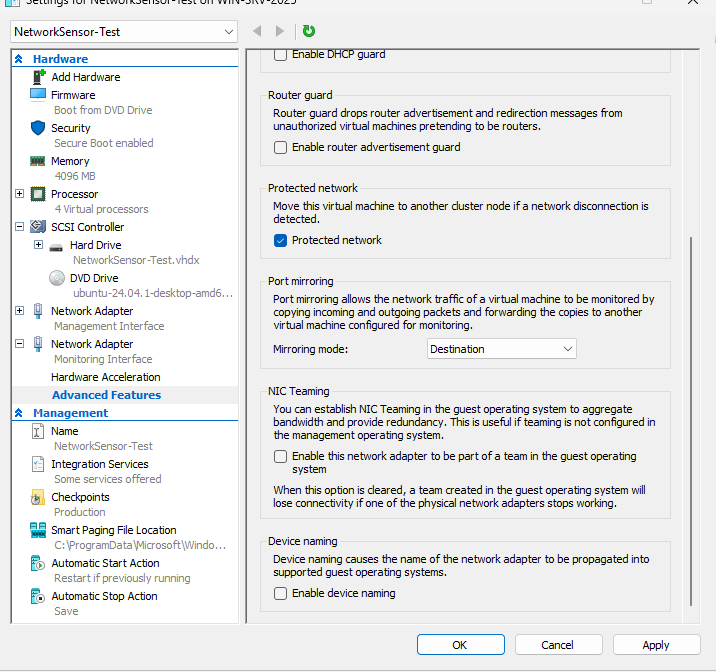
- Click OK to apply these settings.
Install the Base Operating System and the Network Sensor
You can now start the virtual machine. This should bring you to an installation menu for the base operating system you selected.
Troubleshooting the base OS installation
If the virtual machine does not boot to the installation menu, you may need to disable Secure Boot in the Security section of the virtual machine settings.
Once the installation of the base operating system is complete, you can install the network sensor as you would on any other host by following the download and installation instructions.
After installing, a configuration card appears on the Network Sensor management page where you can select the monitoring interface that the network sensor will monitor for traffic. Once selected, click Save to complete the setup of your network sensor.