Enable Virtual Network Peering
If you created the Network Sensor host in a different virtual network to the traffic sources you want to monitor, you must enable Virtual Network Peering .
If the Network Sensor host and the traffic sources are in the same virtual network, skip this article and continue to Configure the Azure vTAP.
⚠️
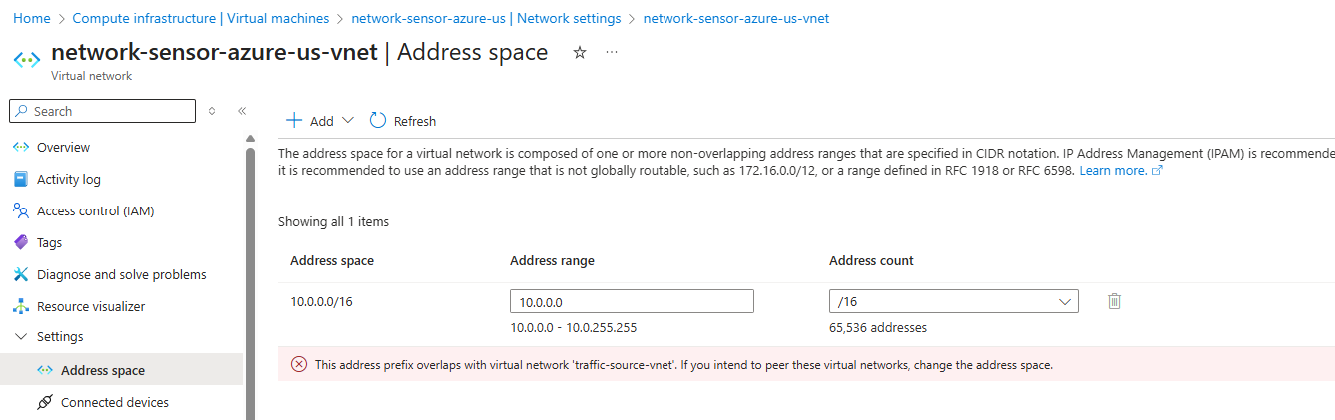
Address spaces must not overlap
To enable Virtual Network Peering, the address spaces of the Virtual Networks being peered must not overlap. Azure displays an error on the Address space menu of the virtual network if the address prefixes overlap.
Add a Peering
If the Virtual Networks are suitable for peering:
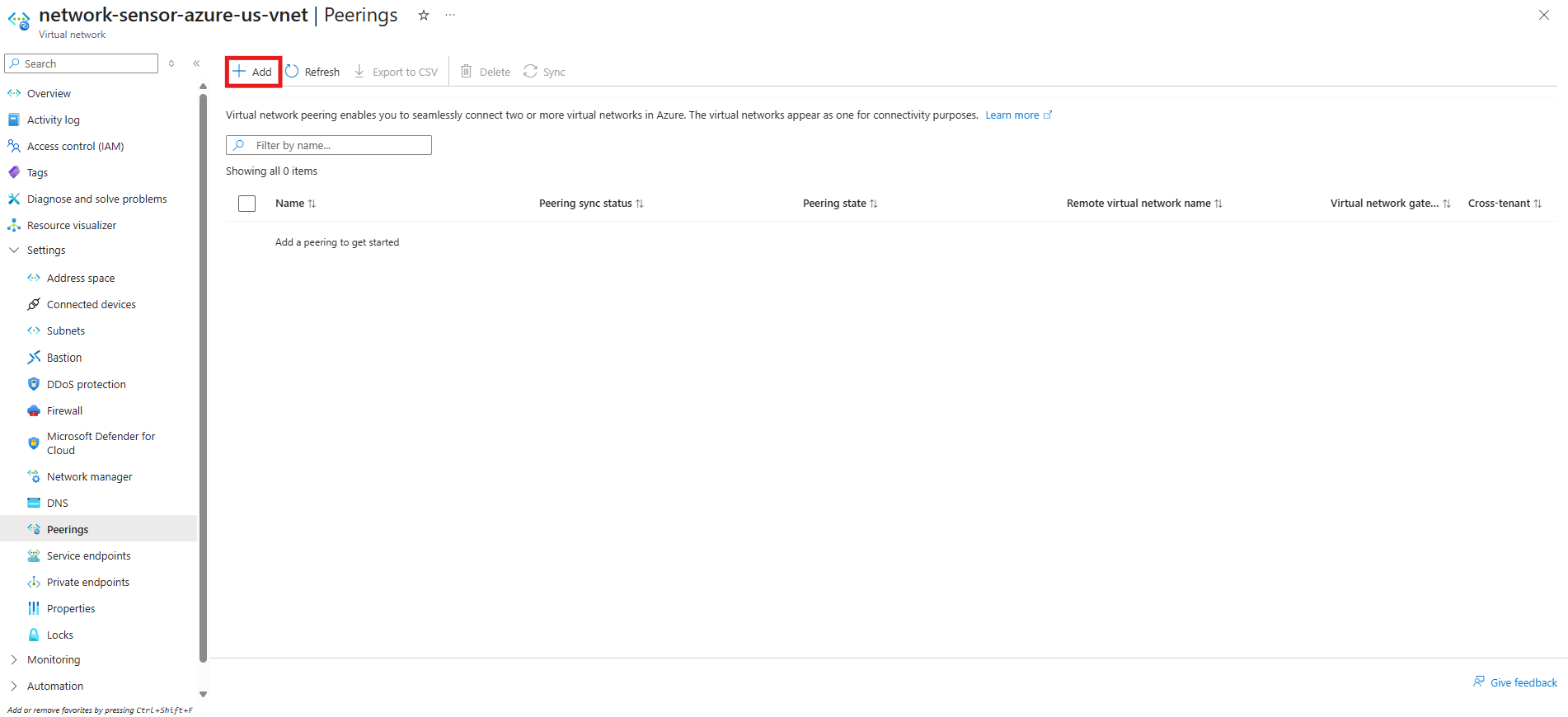
- Navigate to the Peerings menu for the Virtual Network where the Network Sensor host is deployed.
- Select Add.
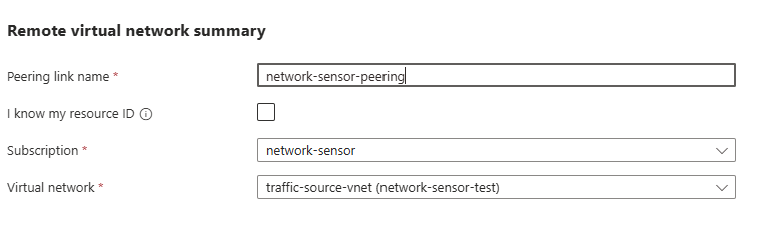
- In the Add peering menu, select the traffic source Virtual Network from the dropdown and set a Peering link name.
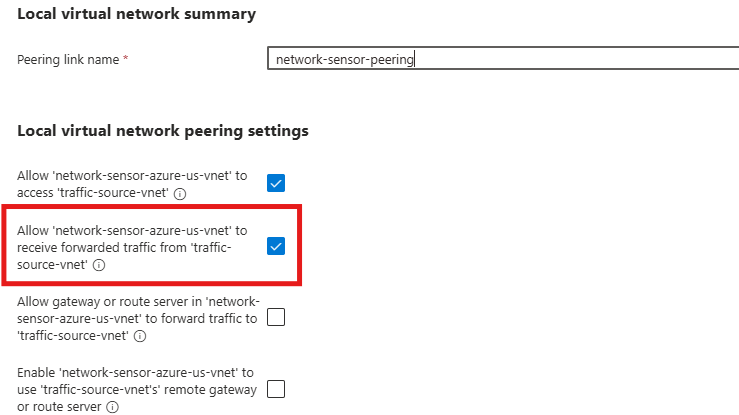
- In Local virtual network peering settings, ensure the Allow forwarded traffic option is set.
✅
Next steps
Now that Virtual Network Peering is enabled, you can configure the Azure vTAP.